Your WordPress maintenance retainer needs a receipt
Nothing breaking is the thing you are paid for, and it looks identical to nothing happening. The update screen is the only evidence the work occurred.
Somewhere around month seven of a maintenance retainer, the client asks what exactly they are paying for. It is a fair question, and the true answer — nothing went wrong — is the worst possible answer.
You spent that month applying a core upgrade, ten plugin updates, and a theme bump, on a staging copy first, and the site never went down. The client experienced that as a month in which they paid you and nothing happened. This is not a communication problem you can fix with a nicer invoice template. It is a records problem, and WordPress hands you the record for free, once, right before you destroy it.
Maintenance is invisible by design
Almost every other line on your invoice describes something the client can look at. A redesign is visible. A new checkout flow is visible. A patched arbitrary-file-upload bug in a forms plugin is, by construction, an event that did not happen.
That asymmetry has two consequences, and both of them are financial.
The first is that perceived value decays. A quiet month feels cheaper than a loud one, so a year of quiet months feels like a year of overpaying. The second is worse: at renewal you are negotiating against the client's memory, and their memory of well-executed maintenance is a blank. The retainer that gets cancelled is almost never the one where something broke. It is the one where nothing ever did.
The instinct is to do more visible work: throw in a page tweak, a performance report. That is billing the wrong thing to solve the wrong problem. The work was real. It just left no artifact.
Consider what a maintenance window actually produces:
| Artifact | Where it lives | How long it survives |
|---|---|---|
| The update screen | /wp-admin/update-core.php | Until you click Update |
| The auto-update email | The site admin's inbox | Until it's deleted |
| Your invoice | The client's accounting records | Effectively forever |
Only one of those three outlives the month, and it is the one that currently says "Monthly maintenance: $400."
What the update screen actually tells you
Before you click anything, /wp-admin/update-core.php is a complete statement of the site's exposure. Read the top of it:
Current version: 6.7.4
Last checked on October 8, 2025 at 3:38 pm EDT.

This site is automatically kept up to date with maintenance and security
releases of WordPress only.

You can update from WordPress 6.7.4 to WordPress 6.8.3 manually:
That middle sentence is core telling you where the automation stops. Since WordPress 3.7, minor releases install themselves by default. Those are the 6.8.2 to 6.8.3 kind, which is where security fixes ship. Major releases like 6.7 to 6.8 wait for a human, because they can break things. So the core line on that screen represents a decision somebody had to make, not a background process.
Below it sits the part that matters more. Core is not where most WordPress sites get compromised; the plugins are. A site running ten plugins is running ten codebases from ten vendors on ten release schedules, and each one publishes its own security fixes at its own pace. The update screen is the only place that inventory appears in one list.
Then you click Update, and the list is gone.
Neither thing you're currently sending works
Most maintenance reporting fails in one of two directions.
The first is the one-liner. "Monthly maintenance: $400." It reads like rent. There is nothing in it to evaluate, so at renewal the only question available to the client is whether they still want to pay rent.
The second is overcorrection: copy the update screen and paste it into the email. Here is what the client receives.
Select Advanced Custom Fields

Advanced Custom Fields
You have version 6.3.12 installed. Update to 6.6.0. View version 6.6.0 details.
Compatibility with WordPress 6.7.4: 100% (according to its author)
Compatibility with WordPress 6.8.3: 100% (according to its author)

Select Elementor

Elementor
You have version 3.30.2 installed. Update to 3.32.4. View version 3.32.4 details.
Six lines per plugin, most of them checkbox labels and compatibility notes written for you, not for them. Ten plugins produce sixty lines of that. It says too much, in the wrong language, and it reads as though you are padding.
What you want is the middle: one dense, factual line per category, in plain words, that a non-technical person can skim in four seconds and an auditor can verify in one.
Turning a maintenance window into a line item
The capture step is the whole trick, and it takes ten seconds. On /wp-admin/update-core.php, before you update anything, select the page text and copy it. Do this first. After you click Update, WordPress has no memory of what the versions used to be.
Paste that into the WordPress Update Text box. The Parsed Updates card collapses sixty lines into three:
WP Core: WordPress 6.7.4 to 6.8.3

Themes: Twenty Twenty-Five updated to 1.3

Advanced Custom Fields updated to 6.6.0, Elementor updated to 3.32.4, WP Super Cache updated to 3.0.1
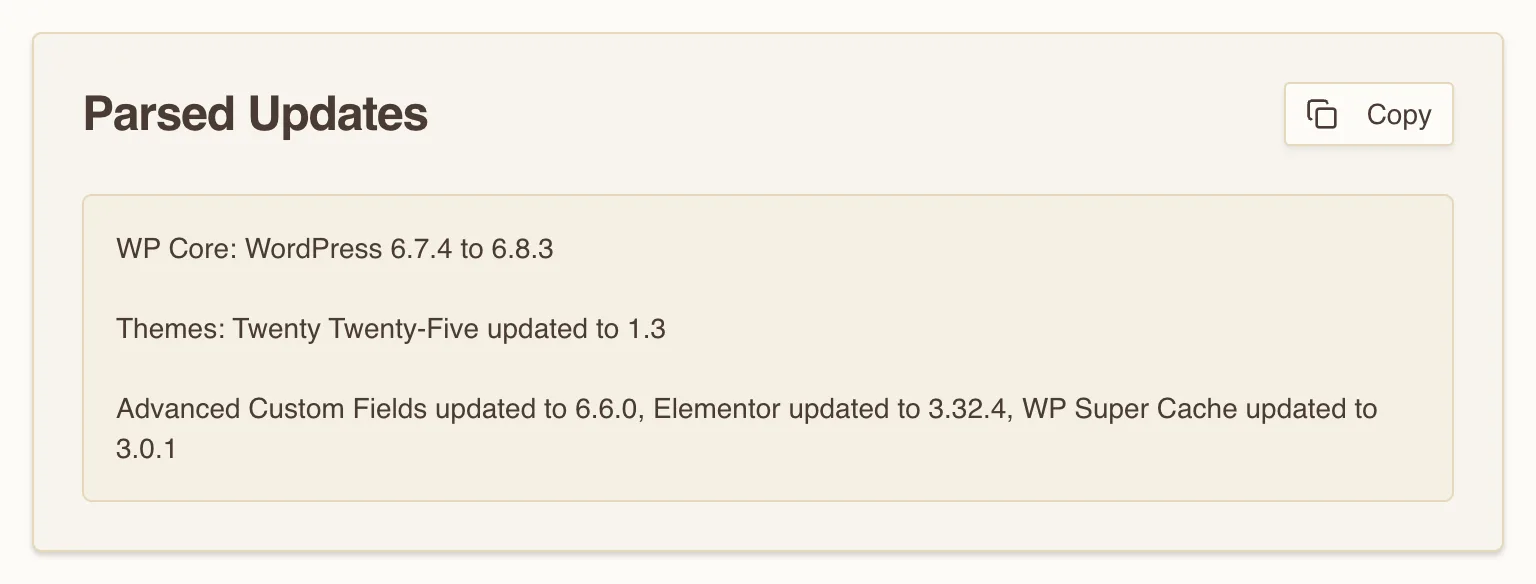
Two things to know about that output before you paste it anywhere.
The core line keeps both versions, 6.7.4 to 6.8.3, because core states them together. The plugin and theme lines record only the version you landed on: Elementor updated to 3.32.4, not from 3.30.2. For an invoice that is the right level of detail. If you also want the from-version, for bisecting a regression later, keep the raw paste in your own notes; the parser does not carry it through.
The second is the HTML format switch. Flip it and the card renders the same summary with the labels bolded; Copy then puts the markup on your clipboard (<strong>WP Core:</strong> … with <br><br> between sections), which drops straight into an HTML email or an invoice line-item field without you hand-tagging anything.
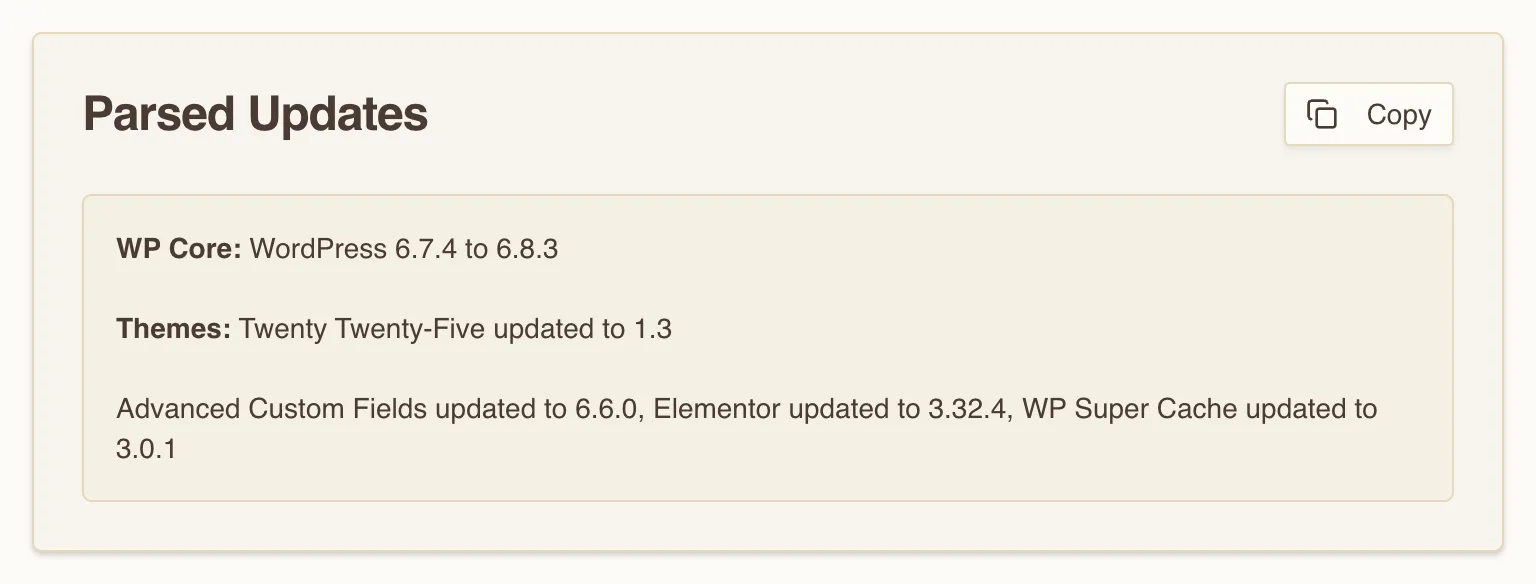
Ten seconds of copying, one paste, one toggle. The output is now a sentence you can put in front of someone who is deciding whether to keep paying you.
What to actually do
- Capture before you click. This is the only irreversible step in the whole workflow. The moment you press Update, the from-versions are gone from the interface forever.
- Keep one dated line per window, per client. A file per site, appended monthly. That file is your renewal conversation, your incident timeline, and your handover document, and it costs you nothing to maintain.
- Translate one item per report. Not all ten. One. "WP Super Cache updated to 3.0.1" means nothing to them; "the plugin that serves your cached pages, updated" means something. Rotate which one you explain.
- Attach it as a document, not a paragraph. Write the month up in markdown, run it through Markdown to HTML, and use its print view to save a PDF. A document gets filed. A paragraph in an email gets scrolled past.
- Diff this month against last month. Paste the two parsed summaries into Diff and look at what did not change. A plugin that has not moved in eighteen months is not stable, it is unmaintained, and you want to raise that while it is a planning conversation rather than an incident.
None of this is more work than you are already doing. It is the same work, written down before the interface throws it away. The client is not paying you for the clicks. They are paying you for the year in which nothing happened, and this is how you prove that year was purchased rather than lucky.